

Set page margins and font
Before adding any text, configure the document’s foundational settings. APA 7th edition student papers require a specific layout to ensure consistency and readability. Open the Layout tab in Microsoft Word and verify your margins are set to 1 inch on all sides. This uniform spacing creates the standard "canvas" for your title page.
Next, select Times New Roman as your font. The APA style guide mandates this specific typeface at a 12-point size. If your document defaults to Calibri or Arial, change it now. Consistent formatting prevents visual clutter and ensures your title page meets academic standards before you type a single word of content.

Add the running head and page number
For student papers, the APA 7th edition rules are simpler than for professional manuscripts. You do not need to type the words "Running head:" before your title. Instead, you only need the page number itself, flush right in the header.
This setup ensures your document looks clean and meets current academic standards without unnecessary clutter. Follow these steps to configure the header in Microsoft Word.
Double-click the very top area of your title page page to open the Header & Footer tab. This activates the header zone where the page number will sit. If the ribbon changes to show "Header & Footer" options, you are in the right place.
Click the Page Number button in the Header & Footer toolbar. Select Top of Page from the dropdown menu. Choose the option that aligns the number to the Right (usually the first or second option in the top row). This places the number in the upper-right corner.
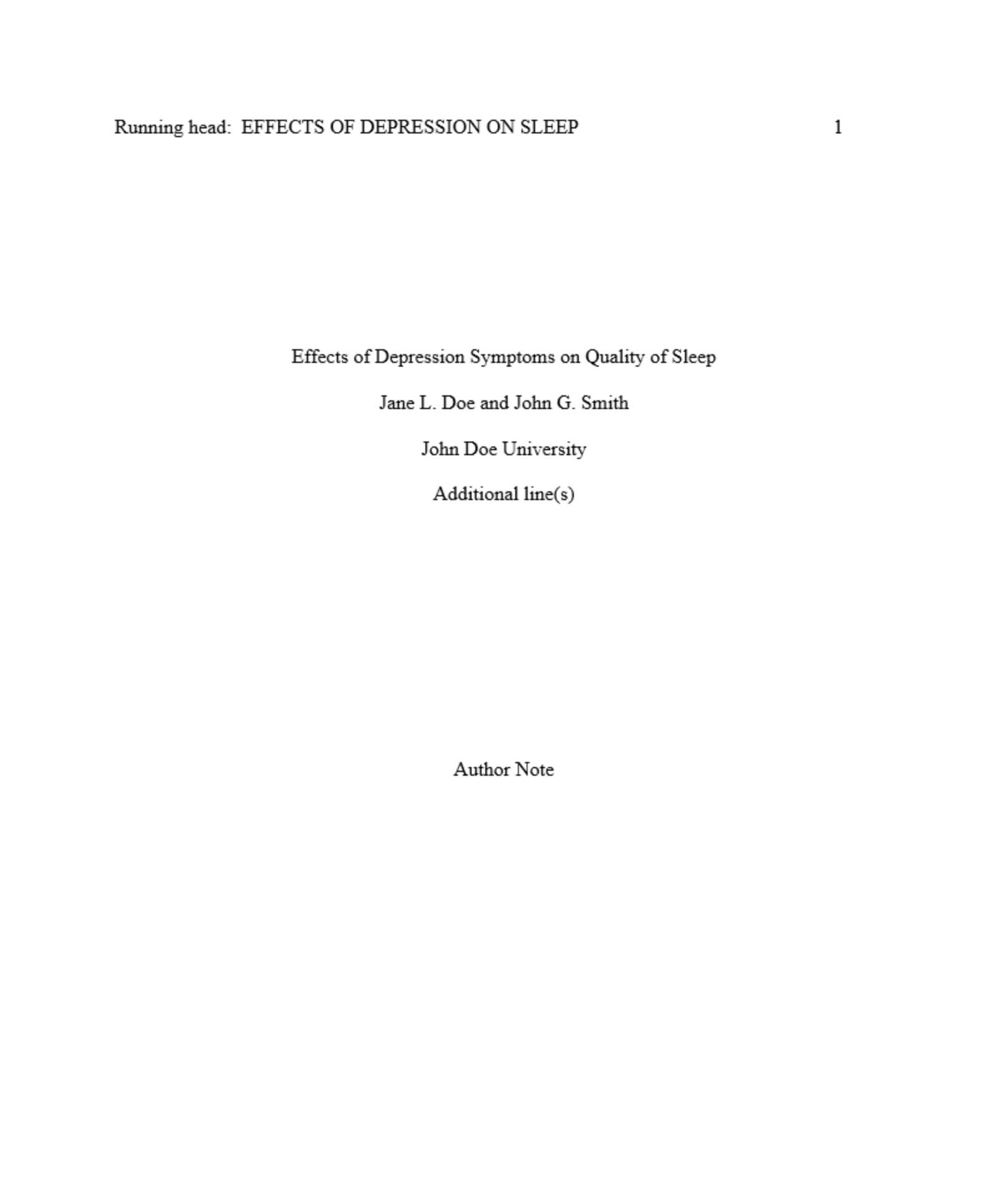
Check the header text. If it says "Running head: [YOUR TITLE]", delete the entire phrase "Running head: " and any trailing spaces. Leave only the page number (usually "1") in the header. Student papers require the number only, not the label or the paper title in the header.
Click the Close Header and Footer button in the toolbar, or simply double-click anywhere in the main body of the page. This locks the settings. Verify that the page number remains visible at the top right of the title page.
With the header set, your title page is structurally complete. The final step is to ensure the document body flows correctly from this page.
Center the title and author details
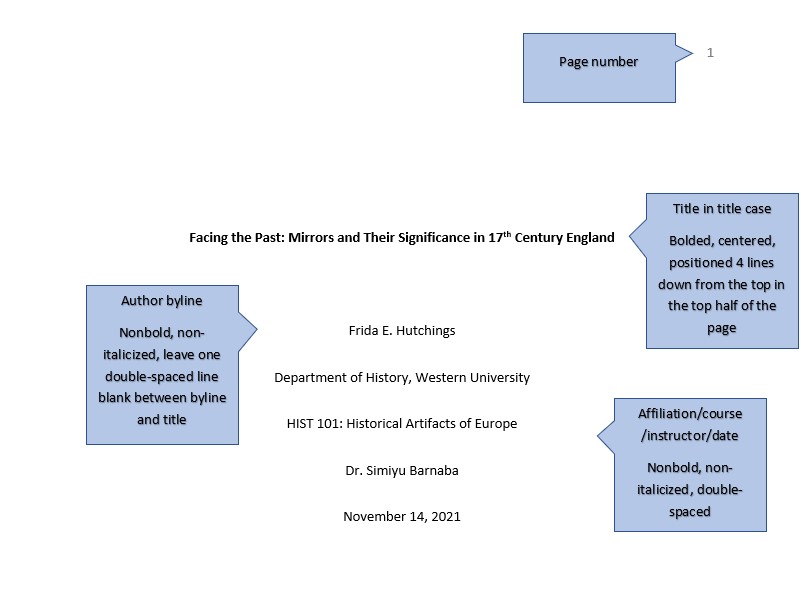
On an APA 7th edition student title page, every element sits in the vertical middle of the page. The text starts three to four lines down from the top margin. This spacing ensures the page looks balanced and professional.
Start by pressing Enter three or four times to create the top gap. Then, type your paper title. Select the title text and press Ctrl+B (or Cmd+B on Mac) to bold it. Keep the title in title case, meaning you capitalize the first letter of major words. Avoid underlining or using all caps.
After typing the title, press Enter twice. This creates the required double spacing between the title and the author name. Type your full name on the next line. Do not bold the name. Press Enter twice again and type your university affiliation on the following line. This completes the first half of the required elements.
The remaining three elements—course number and name, instructor name, and due date—follow the same pattern. Type each on a separate line, pressing Enter twice between them. All six elements must be centered horizontally.
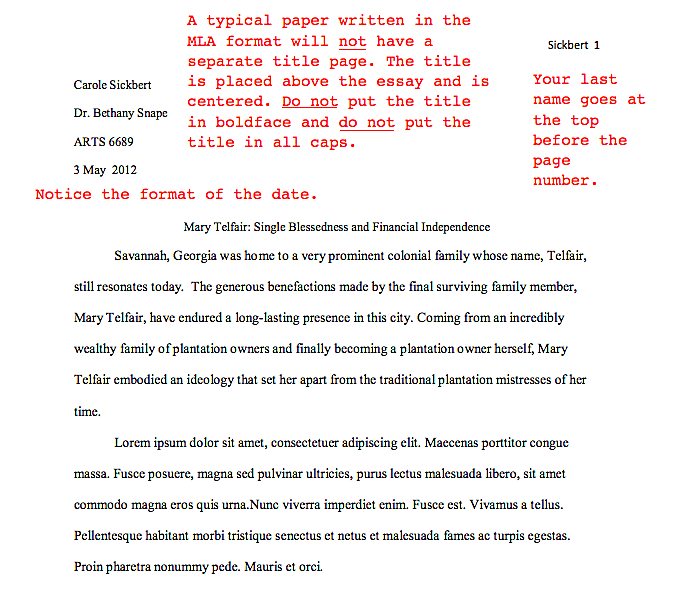
To center the text, highlight all six lines and press Ctrl+E (or Cmd+E). This aligns the text to the middle of the page. Ensure your entire title page uses double spacing throughout. The final result should look like the example below, with equal white space above and below the block of text.
Fix common formatting mistakes
Even with the right content, a title page can fail review if the formatting drifts from APA 7th edition standards. The most frequent errors involve spacing, alignment, and font consistency. These issues are often invisible until the document is printed or submitted, so catch them early.
Check vertical spacing
APA format requires the title, author name, and affiliation to be vertically centered on the page. A common error is leaving too much space at the top or bottom.
- Highlight all text on the title page.
- Ensure the entire block is positioned in the middle of the page, not floating near the top.
- Remove any extra blank lines before the title or after the affiliation.
Verify bolding and alignment
The title of your paper must be bolded and centered. Many students forget to bold the title or leave it left-aligned. The author name and institutional affiliation should be plain text (no bold) and also centered.
Use the correct font
APA 7th edition allows several fonts, including 11-point Calibri, 11-point Arial, or 12-point Times New Roman. The most common mistake is mixing fonts (e.g., bold title in Times New Roman but body in Calibri). Stick to one font family for the entire document.
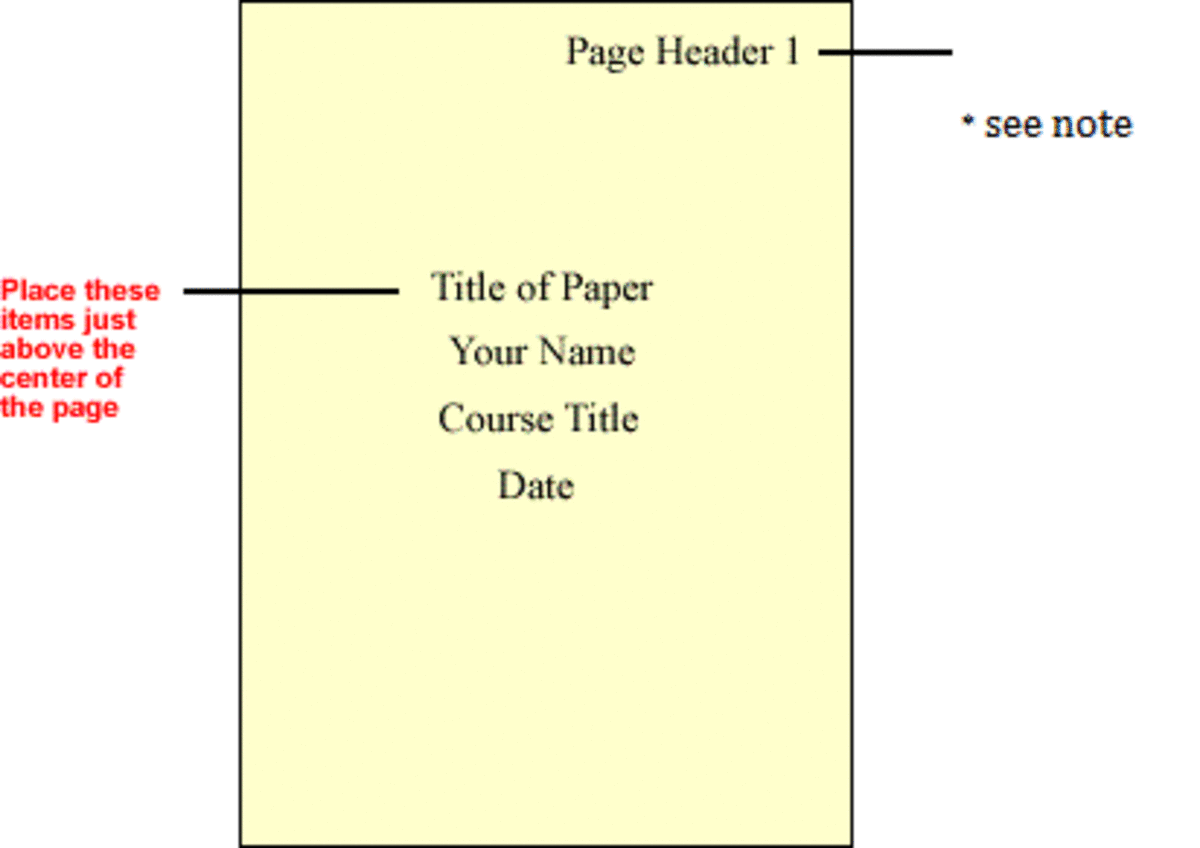
Select your title, name, and affiliation. Click the "Center" alignment button in the Home tab. This ensures the text block is perfectly centered horizontally.
Highlight only the title text. Press Ctrl+B (or Cmd+B on Mac) to bold it. Do not bold the author name or the university name.
.webp)
Ensure the page number "1" is in the top-right corner of the header. It should be flush right and one inch from the top edge of the page.
Verify your APA format title page
Before you submit, run through this final check to ensure your student paper meets APA 7th edition standards. A missing detail or misaligned element can cost you points, so treat this step with the same care as your content.

Highlight all text on the title page and press Ctrl+E (Windows) or Cmd+E (Mac) to ensure everything is vertically centered. The title, author, affiliation, course, instructor, and date should form a single block in the middle of the page.
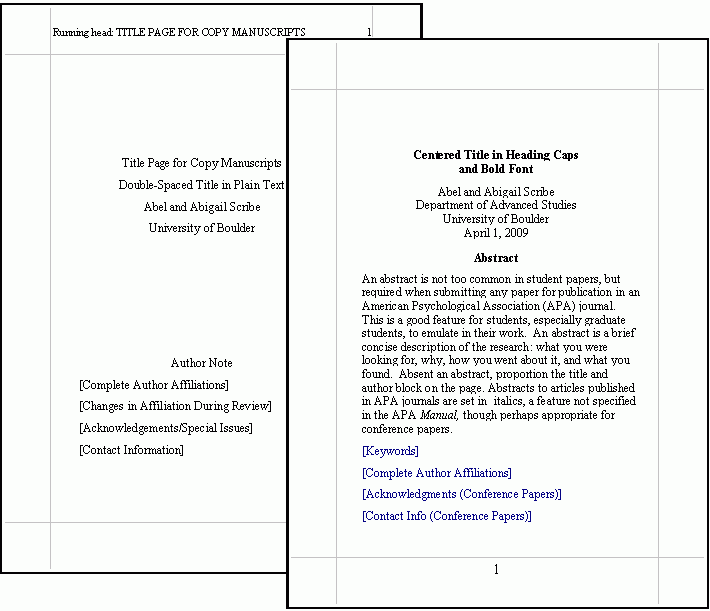
Ensure the paper title is in bold, title case, and placed on the first line of the centered block. Do not use underlines, italics, or quotation marks around the title.
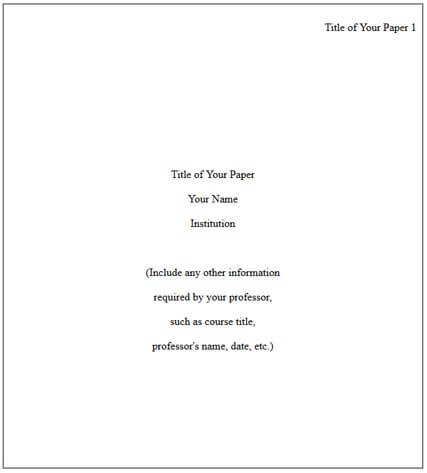
List your full name on the second line and your university affiliation on the third. Use your official institutional name (e.g., "University of Michigan"), not a shortened version.
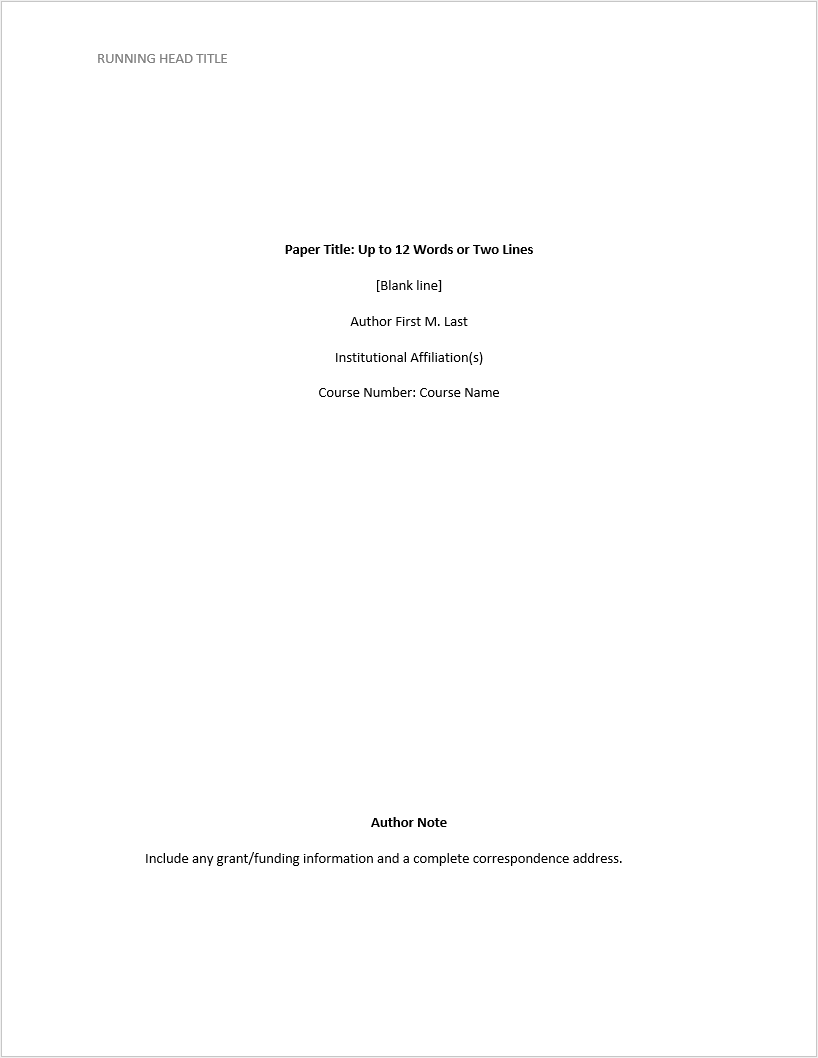
Include the course number and name on the fourth line, and the instructor's name on the fifth. Use the instructor's official title (e.g., "Dr." or "Professor") if appropriate.
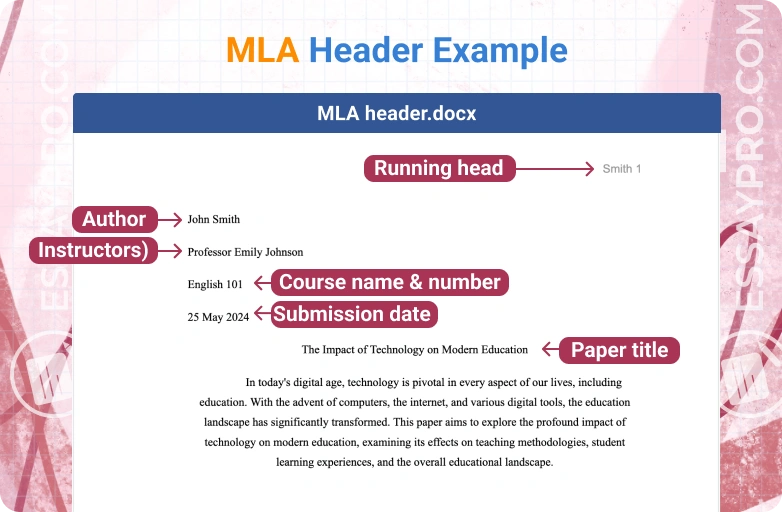
%2520vs.%2520MLA%2520(Modern%2520Language%2520Association)-(Compressify.io).webp)
The due date should appear on the sixth line in the format "Day Month Year" (e.g., "12 October 2023"). Finally, ensure the page number "1" is in the top right corner of the header.

-
Title is bold and in title case
-
All elements are vertically centered
-
University affiliation is full and official
-
Date is in Day Month Year format
-
Page number is in the top right header
If any item is missing or misformatted, adjust it now. A clean title page sets the tone for your entire paper.
No comments yet. Be the first to share your thoughts!